8 Set up Outlook
8.1 Outlook startup
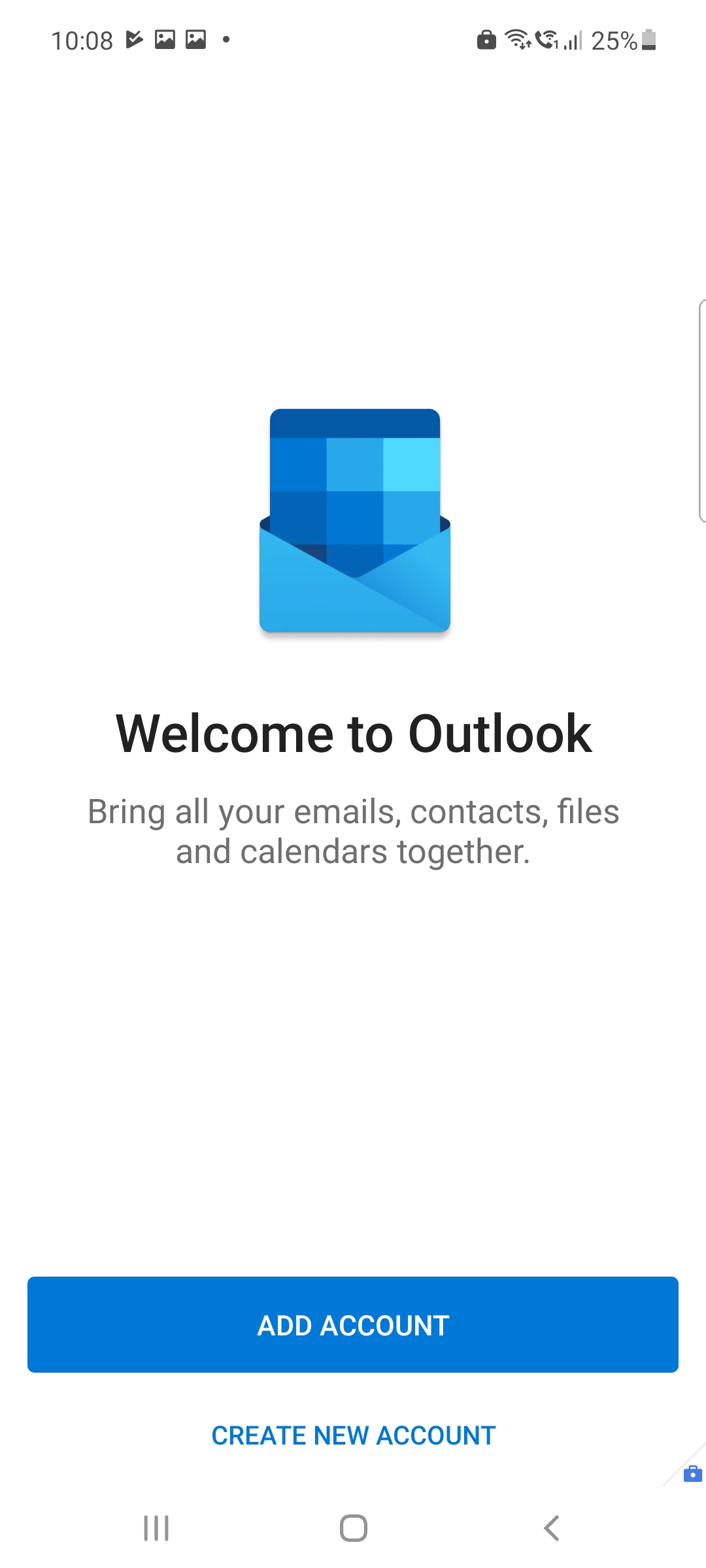
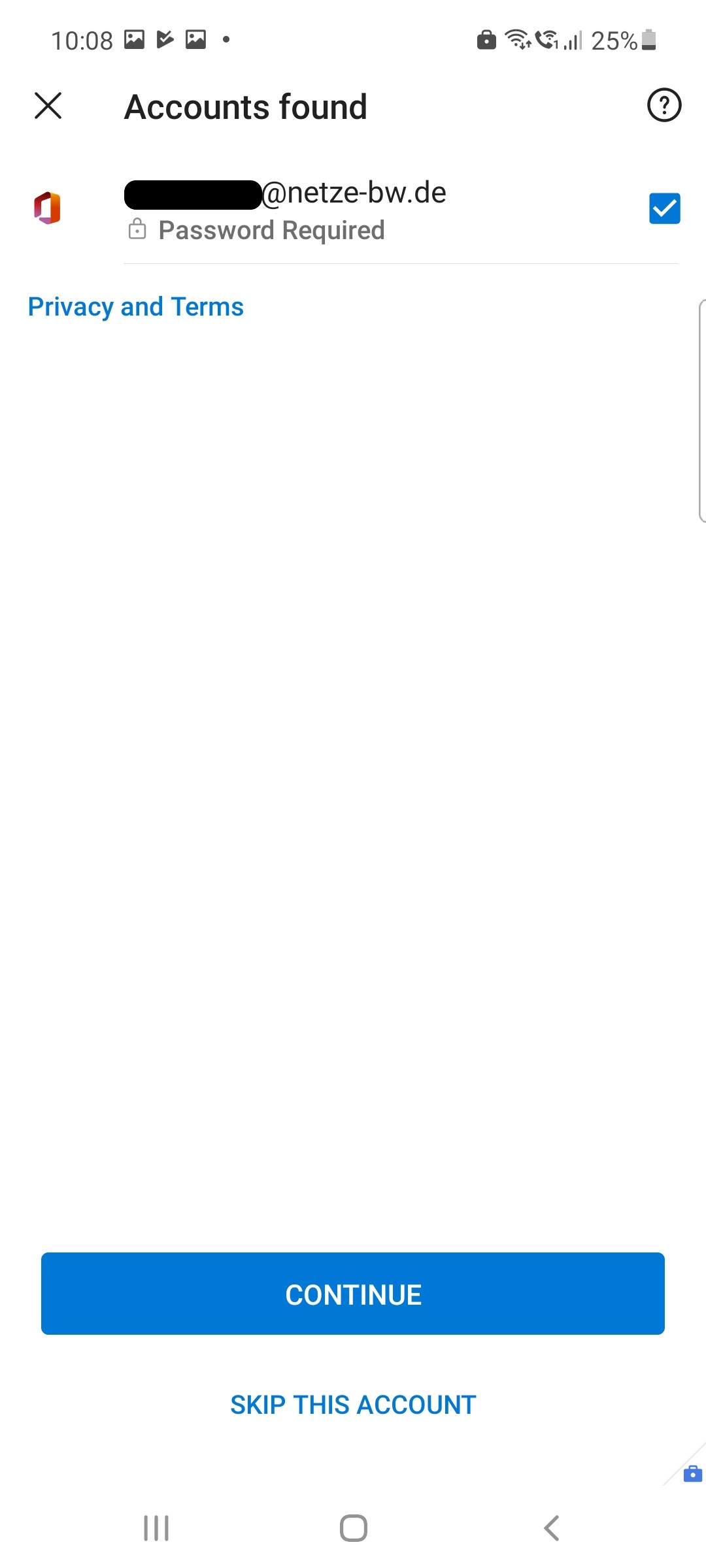
Outlook should automatically find an account after the first start. Tap on 1 ACCOUNT FOUND. Then check your mail address and tap NEXT.
8.2 Add another account
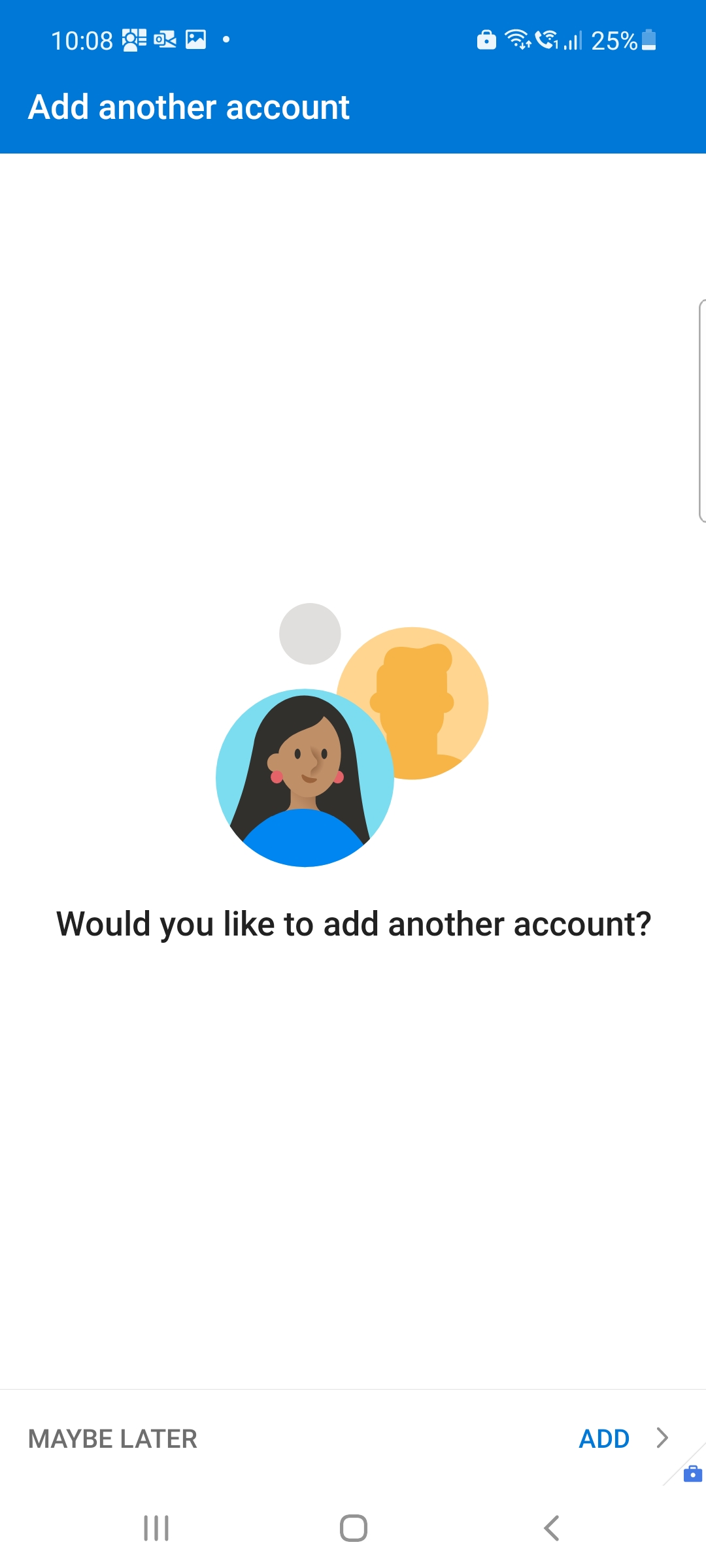
When asked to add another account, tap MAYBE LATER.
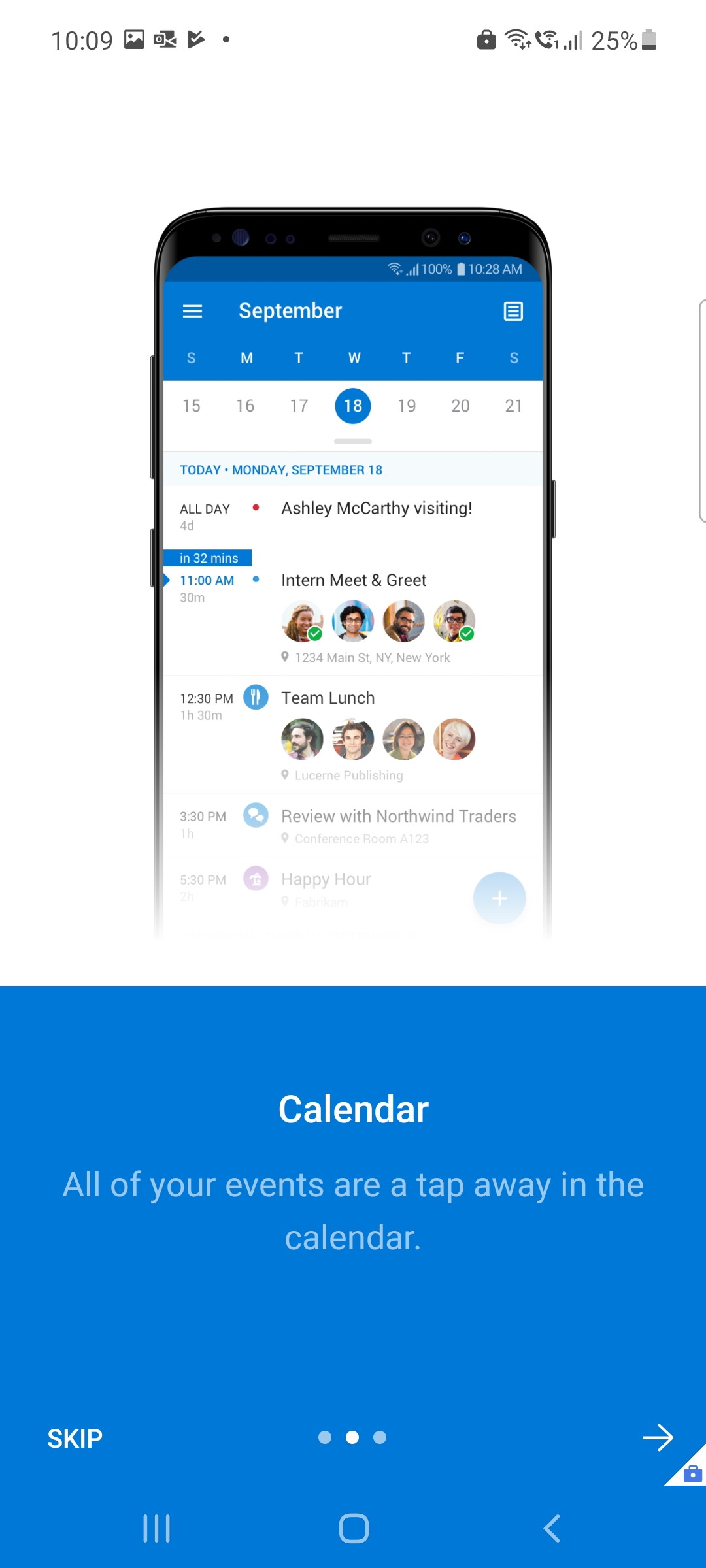
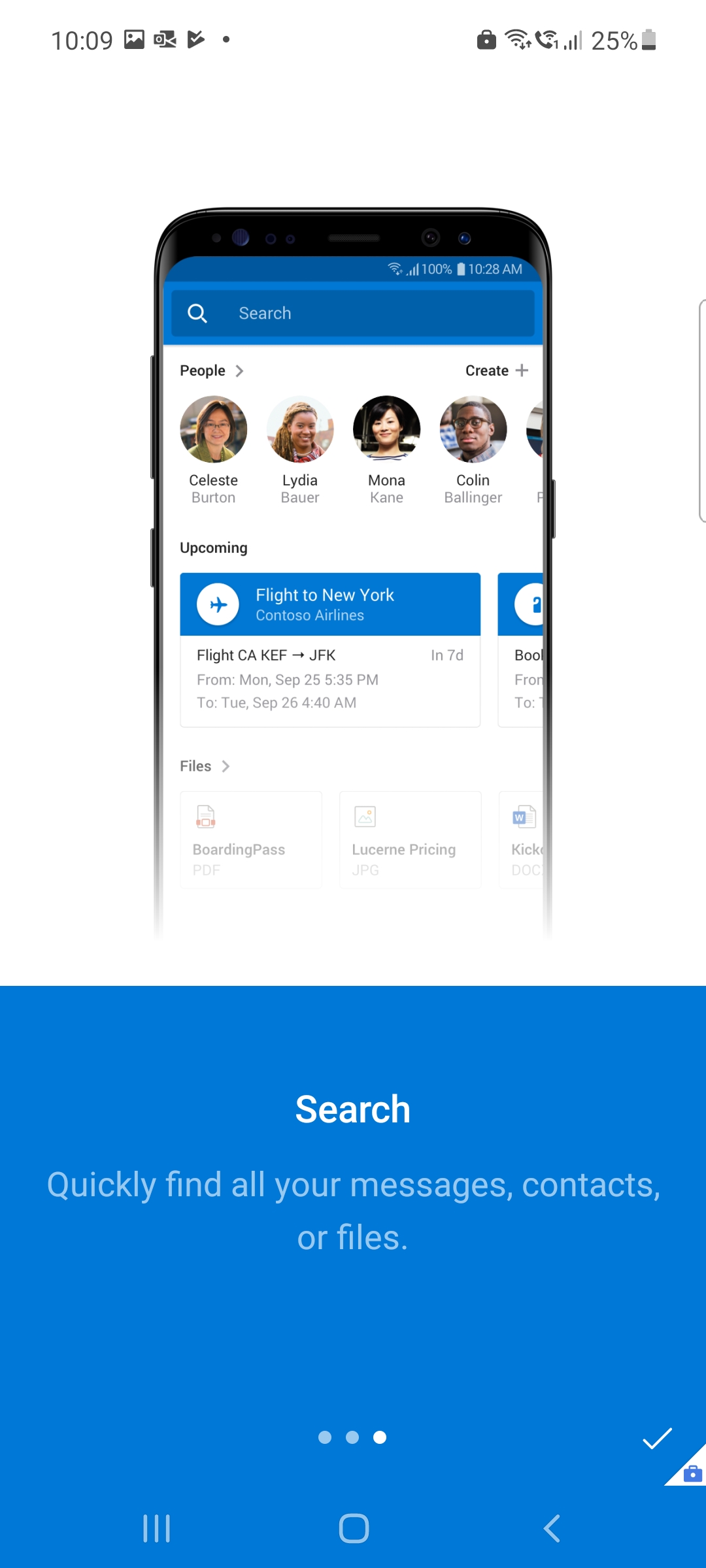
8.3 Setup Wizard
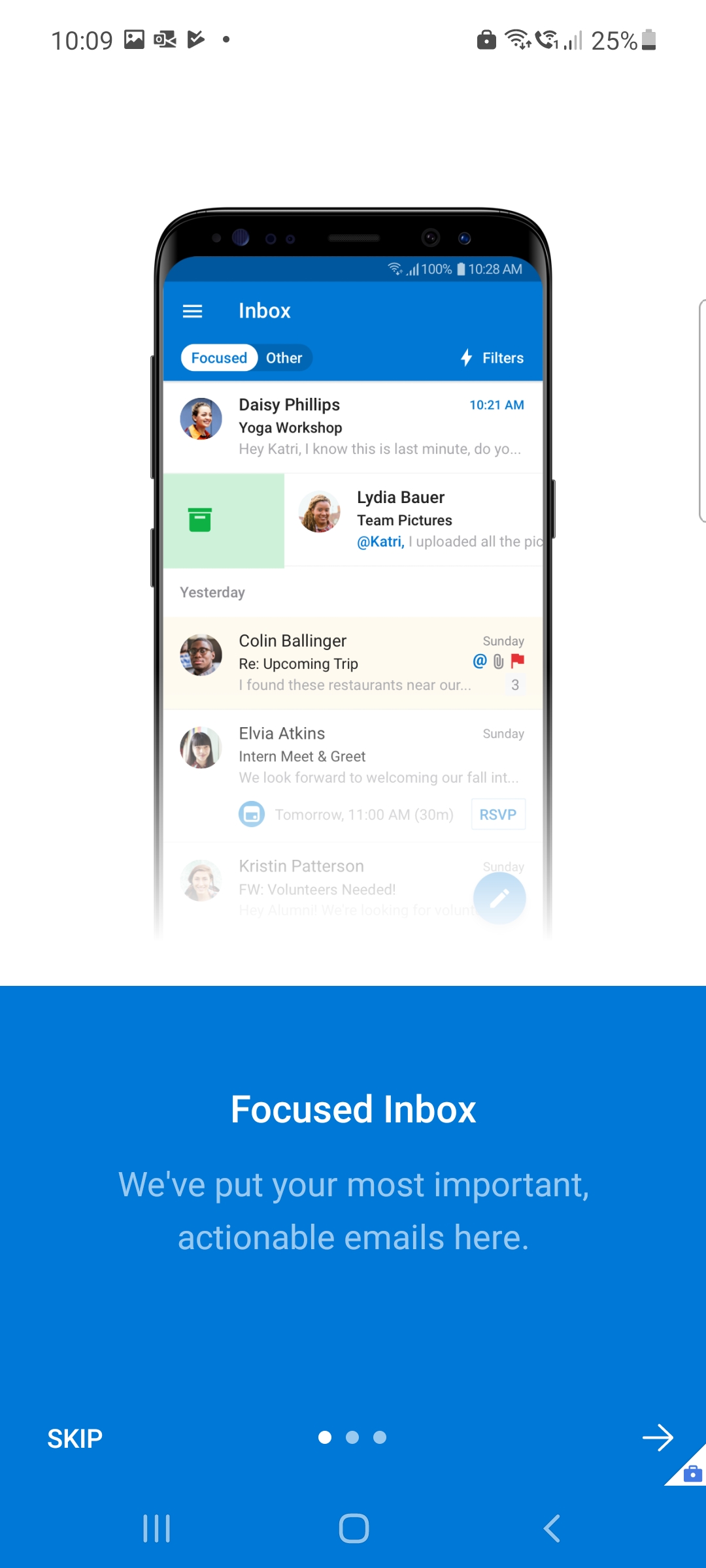
Read through the instructions and tap the ➡ icon to run through the wizard.
8.4 Menu & more folders
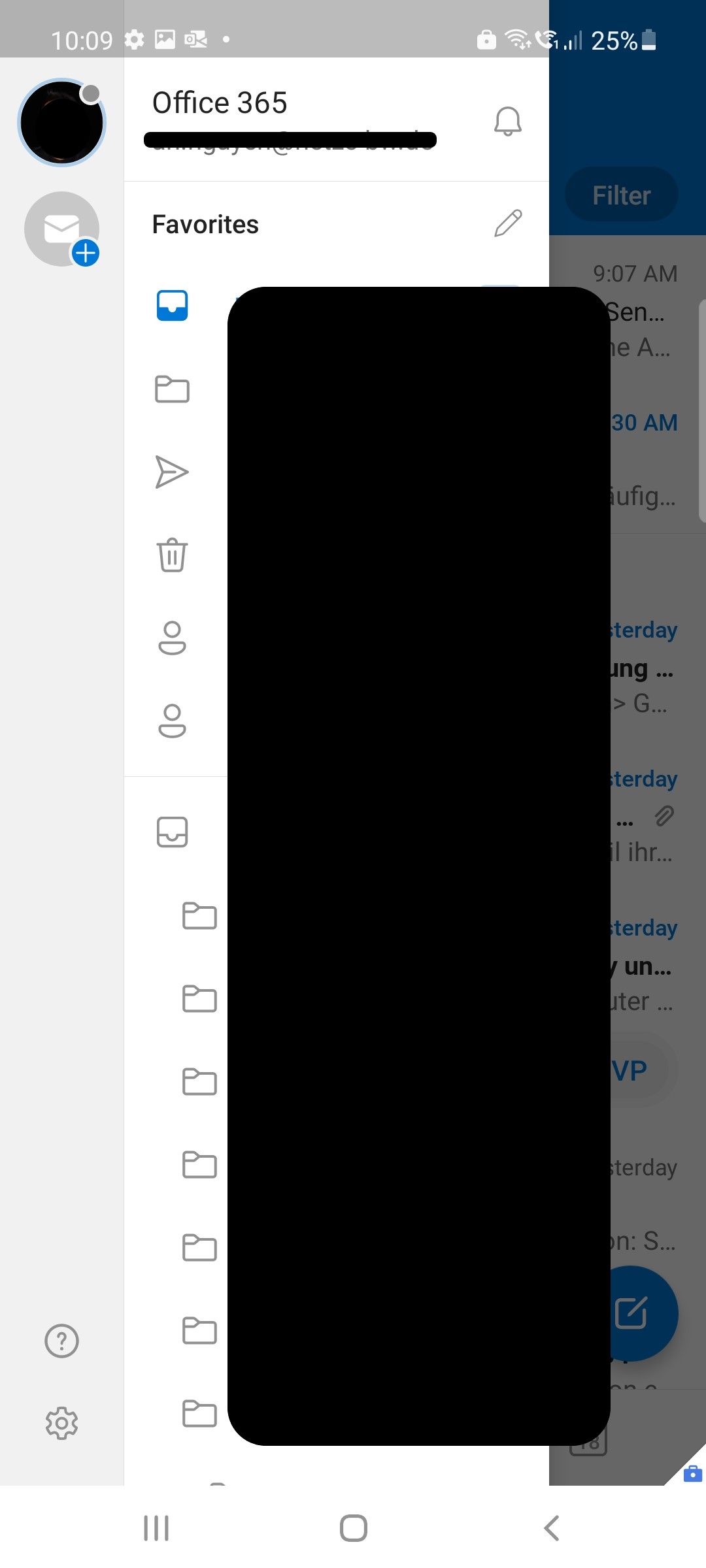
By tapping in the upper left corner (avatar image) or swiping from the left edge of the screen to the right, the Outlook app menu opens. Here you can find all your Outlook folders.
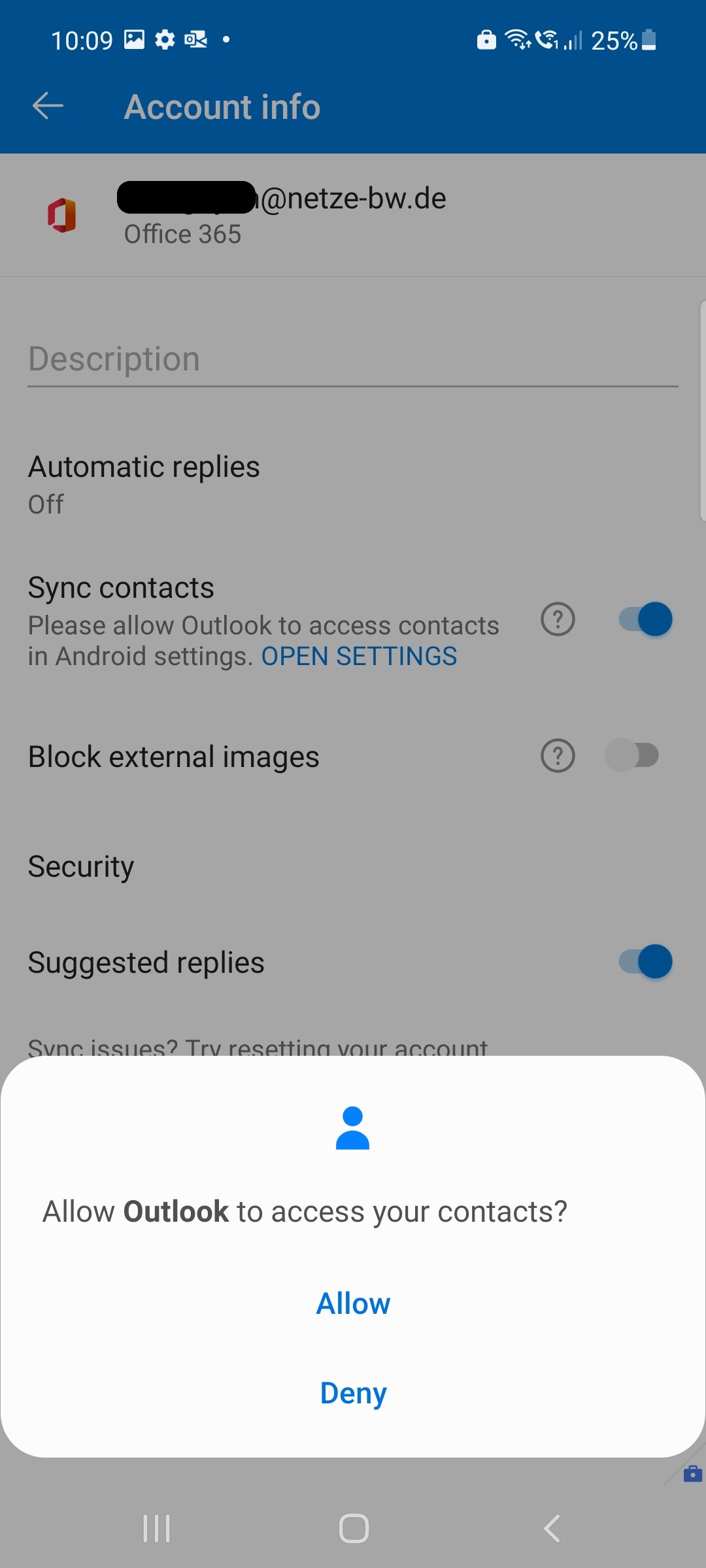
8.5 Activate contacts synchronization
Follow these steps to make your Outlook contacts appear in the Contacts app:
- Open the Outlook app menu as described in the previous step.
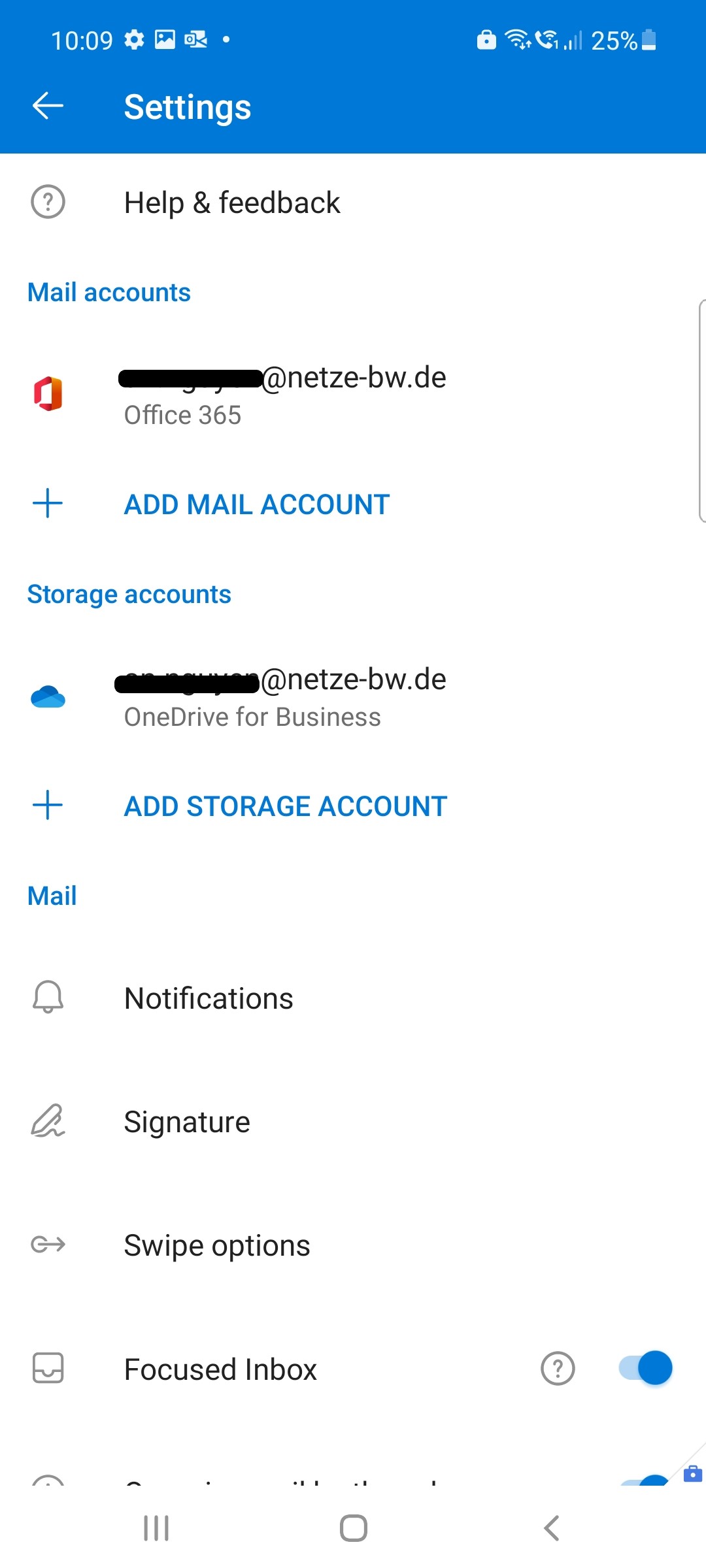
- Tap the gear icon ⚙ and then tap your email account.
- Activate the setting Synchronize contacts.
- Confirm the dialog with Allow.
8.6 Open Contacts App
You can now find your contacts in the Contacts app in the business section.