4. Setup Outlook
4.1 Start Outlook
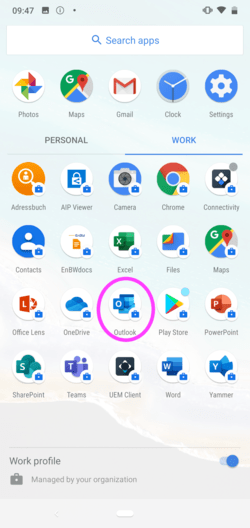
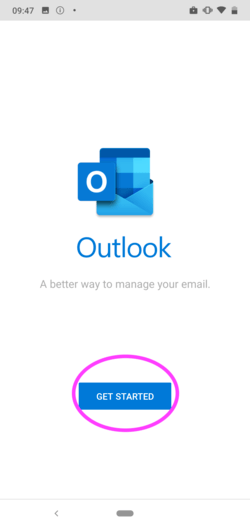
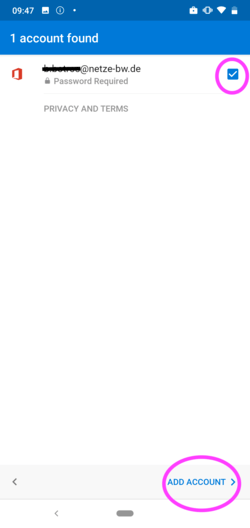
Open the Outlook App from the business area. After Outlook is started tap on GET STARTED. Then check your mail address and tap ADD ACCOUNT.
4.2 Enter password
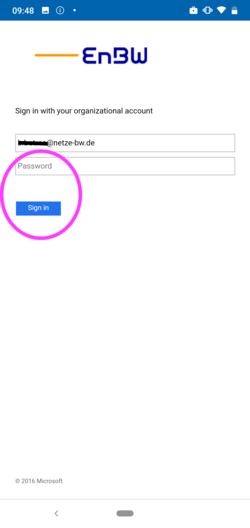
Enter your Büko password and tap Sign in.
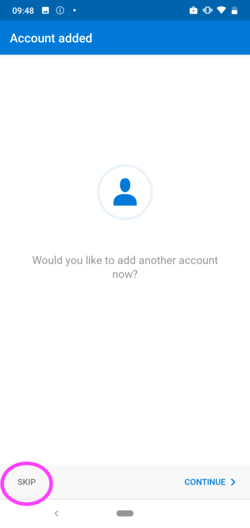
4.3 Account added
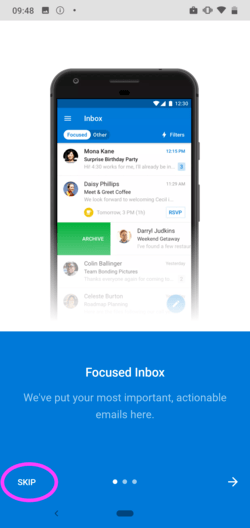
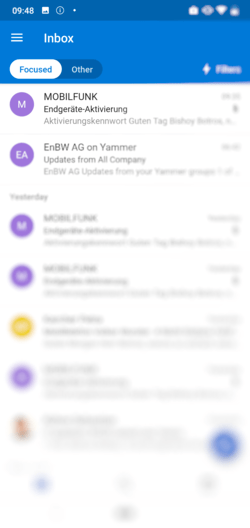
On the next two pages, tap SKIP. You will then see the inbox of your mail account.
4.4 Open Contacts app
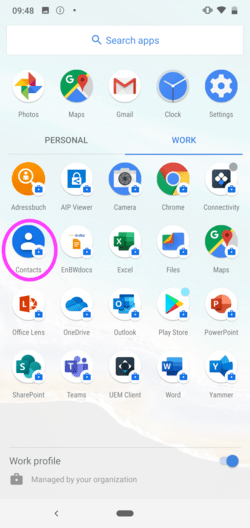
Now you can find your contacts in the Contacts app. Then tap on Skip.
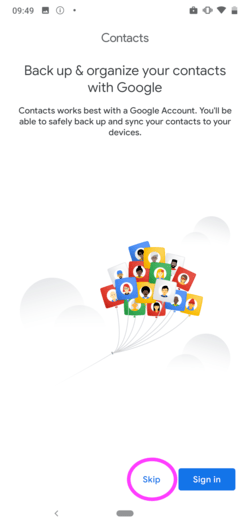
4.5 View contacts
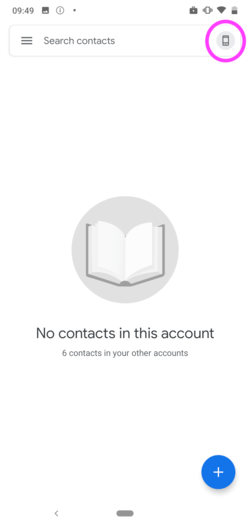
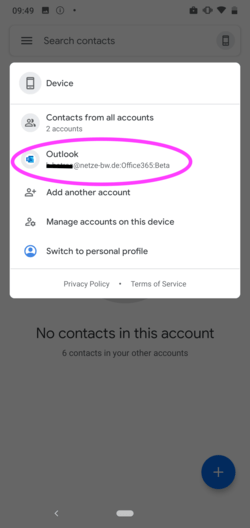
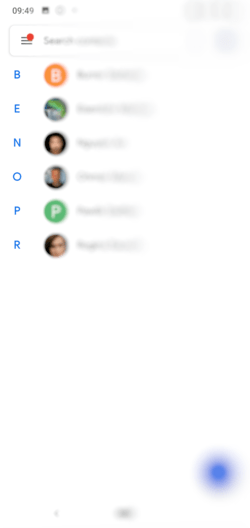
Tap the Account symbol that looks like a little phone in the upper right corner and select Outlook on the next screen . You will now see your contacts.
4.6 Setup completed
The business profile is now activated and set up on your device 👍🏻. You can find more business apps in the Business Play Store (see chapter Business Apps).
Hint
If you have any questions or problems please contact the IT Support.